Best Photo Organizer Apps for Mac in 2026
Apple Photos, Lightroom Classic, Mylio Photos, digiKam, Photo Mechanic, plain Finder folders and more: how each organizes a Mac photo library and who it suits.
Updated · 12 min read

A Mac photo library grows quietly. A few hundred pictures a month from an iPhone, a camera card every holiday, screenshots, receipts, job-site shots and scanned family prints, and within a few years there are tens of thousands of images sorted by nothing more than the date they were taken. Finding one specific photo turns into scrolling.
The good news is that the Mac has more strong options for organizing photos than almost any other platform, from the free app that ships with it to professional tools built for photographers who file thousands of frames a day. This guide explains the choices that matter, then walks through the best-known photo organizers for Mac and who each one suits.
What to look for in a Mac photo organizer
A managed library or your own folders
This is the most important difference between organizers, and it is worth understanding before anything else. A managed library keeps your photos inside a single library package that the app controls; you browse and organize through the app. A folder-based (or “referenced”) organizer leaves your photos in ordinary folders on your drive and builds its catalog on top of them, so you can still see and use the files in Finder.
Managed libraries are simpler and sync well. Folder-based organizers are more portable: if you ever stop using the app, your files are still where you put them.
Metadata you can search
Keywords, captions, ratings, people and places are what make a large library searchable. Check whether an app writes that information into the image files or keeps it only in its own database. Metadata kept inside the app is lost if you leave the app; metadata written to the files travels with them.
Sync across your devices
If most of your photos come from an iPhone, how the organizer gets them off the phone matters as much as how it sorts them once they arrive.
Editing, sharing and price model
Some organizers include serious editing; others hand photos off to a separate editor. Some are free, some are a one-time purchase and some are sold by subscription. None of these is right or wrong, but it helps to know which you are signing up for.
The best-known photo organizers for Mac
Every app below is a well-regarded choice for someone. Features and pricing change, so check each developer’s site for current details before you commit a large library to one.
Apple Photos
Photos comes with every Mac and is the natural starting point. With iCloud Photos turned on, everything you shoot on an iPhone appears on the Mac automatically. It organizes with albums and folders of albums, Smart Albums that fill themselves based on rules (a keyword, a date range, a camera), keywords and captions, favorites, and on-device recognition of people, pets and places. Editing is solid for everyday photos.
Best for: most Mac and iPhone users who want organization without adding another app. Worth knowing: Photos uses a managed library, so your originals live inside the library package rather than in folders you arrange yourself.
Adobe Lightroom Classic
Lightroom Classic is a long-standing favorite of photographers. It catalogs photos where they already sit on your drives, and offers keywords with hierarchies, collections, smart collections, ratings, flags and color labels, alongside deep raw-file editing. Adobe also offers the cloud-based Lightroom, which is simpler and syncs across devices. Both are sold as part of Adobe’s subscription plans.
Best for: enthusiasts and professionals who shoot raw and want organization and editing in one catalog.
Mylio Photos
Mylio Photos is designed to bring photos from many places, including phones, computers, external drives and cloud services, into one organized library across your devices, and it can work with photos stored in your own folders. It offers calendar and map views, face tagging and duplicate finding, with free and paid tiers.
Best for: families and anyone whose photos are scattered across several devices and drives. Libraries pulled together from many sources tend to be full of copies, so our guide to finding and removing duplicate photos on a Mac is a useful next step.
digiKam
digiKam is a free, open-source photo manager available for Mac as well as Windows and Linux. It works with your existing folders and is especially strong at metadata: tags, ratings, captions and detailed editing of the information stored in the files. Its interface follows its cross-platform roots rather than typical Mac conventions.
Best for: people who want powerful, file-based tagging at no cost and do not mind a less Mac-like interface.
Photo Mechanic
Photo Mechanic, from Camera Bits, is known for speed: importing memory cards, previewing and culling large shoots quickly, and applying captions and keywords in bulk. It is popular with sports, news and event photographers who need to move from camera to delivered files fast. It is a paid app.
Best for: working photographers who ingest and caption large volumes of images.
Finder folders and tags
Do not overlook the tools already on your Mac. A clear folder structure, Finder tags, Quick Look (press the space bar to preview) and Spotlight search make a capable, free organizer, and one that works with every other app and every cloud drive. The trade-off is that nothing is automatic: you do the sorting.
Best for: people who want their photos as plain files they fully control, including many contractors who share job photos with a crew.
SnapGun (our own app, coming soon)
SnapGun is ours, so read this section with that in mind. It is a camera and photo organizer for iPhone and Mac that files photos as you take them: each session gets a numbered folder, every file is named to match, and you can add your own fields such as client, room or stage. Photos go to a Dropbox folder you choose, to Apple Photos, or to both, and they stay organized as plain folders even outside the app. SnapGun is not released yet; you can join the waitlist for launch news.
Best for: people who photograph work, such as inspections, projects, inventory or parts, and need every shot filed by job rather than by date.
Side-by-side summary
| App | Library style | Strongest at |
|---|---|---|
| Apple Photos | Managed library | iPhone sync, Smart Albums, people and places |
| Lightroom Classic | Your folders, catalogued | Keywords, collections, raw editing |
| Mylio Photos | Your folders, across devices | Pulling scattered libraries together |
| digiKam | Your folders | Free, deep metadata tagging |
| Photo Mechanic | Your folders | Fast ingest, culling and captioning |
| Finder | Your folders | Free, universal, fully in your control |
| SnapGun (coming soon) | Numbered folders, Dropbox and/or Photos | Filing work photos by job as you shoot |

A note on iPhone photos and iCloud
If you use iCloud Photos with the Optimize Mac Storage setting, your Mac may keep smaller versions of older photos and download the full-size originals only when you open them. That saves space, but it matters when you organize or back up: a backup of the Mac alone may not include every original. If you want a complete local copy, switch the setting to Download Originals to this Mac in Photos settings (you will need the disk space), and let it finish before you rely on your backup.
Back it up before you reorganize
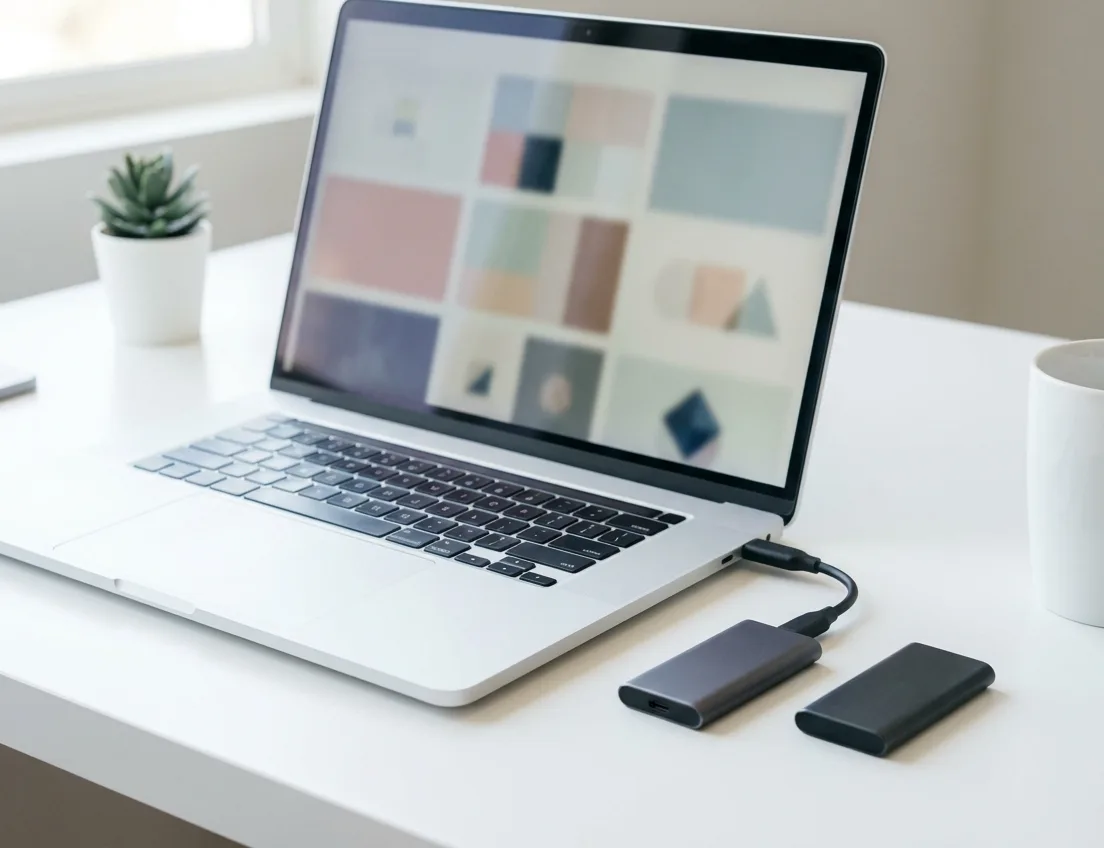
Before you move a large library into a new app, or start renaming and re-foldering thousands of files, make a complete backup. A common rule of thumb is 3-2-1: three copies of your photos, on two different kinds of storage, with one copy kept somewhere other than your home or office. On a Mac, Time Machine to an external drive plus a cloud copy covers it for most people; our step-by-step guide on how to back up your photo library on a Mac walks through the whole plan.
Which one should you use?
- You mostly shoot on an iPhone and want it simple: Apple Photos, with albums and a few Smart Albums.
- You shoot raw on a camera and edit seriously: Lightroom Classic.
- Your photos are spread across old laptops, drives and phones: Mylio Photos.
- You want powerful tagging for free: digiKam.
- You shoot events or news on deadline: Photo Mechanic.
- You photograph jobs, inspections or inventory: Finder folders with a naming system today, and keep an eye on SnapGun.
If you take photos for work, our guide on how to organize job site photos on a Mac turns these ideas into a step-by-step system.
Frequently asked questions
What is the best free photo organizer for Mac?
Apple Photos, which is already installed, is the best free choice for most people. If you want folder-based organization with advanced tagging, digiKam is free and open source.
Can I organize photos on a Mac without using the Photos app?
Yes. Finder folders, tags and Spotlight work well, and folder-based apps such as Lightroom Classic, digiKam and Photo Mechanic organize photos without moving them into a library.
Will switching apps lose my albums and keywords?
It can. Albums usually live only inside the app that created them, while keywords and captions can often be exported or written into the files. Test with a small batch before moving everything.