How to Find and Remove Duplicate Photos on a Mac
Use the built-in Duplicates album in Photos, clean up duplicates in Finder folders, and know when a dedicated duplicate finder is worth it, without losing a single original.
Updated · 9 min read

Duplicate photos creep into every Mac library. The same card imported twice, a folder copied “just in case,” an old library merged into a new one, photos saved from messages that were already in the camera roll, and the burst of eight near-identical shots of one moment. Individually harmless, together they waste storage, clutter every album and make the photo you want harder to find.
The good news is that recent versions of macOS can find exact duplicates for you, and a careful routine handles the rest. This guide covers the built-in tools first, then folders, then when a dedicated app is worth it, all without risking the one copy you actually need.
Before you delete anything: back up
Removing duplicates means deleting files, and it is easy to be wrong about which copy is the spare. Make a complete, current backup of your library before you start, and check it has finished. If you do not have one yet, follow our guide on how to back up your photo library on a Mac first; it takes an evening and makes everything below reversible.
Method 1: The Duplicates album in Photos
On macOS Ventura and later, the Photos app detects duplicates on its own. Look in the sidebar under Utilities for an album called Duplicates. It appears once Photos has finished scanning the library, which can take a while on a large library the first time.
- Open Photos and click Duplicates in the sidebar.
- Review each set. Photos groups exact copies, and also copies that differ only slightly, such as in resolution or file format.
- Click Merge on a set, or select several sets and merge them together.
Merging keeps the highest-quality version and combines relevant details, such as keywords and captions, into it. The extra copies move to Recently Deleted, where they stay for a period before being removed for good, so a mistake can be undone. If you use iCloud Photos, the change applies to the library on all your devices.
Method 2: Near-duplicates and bursts
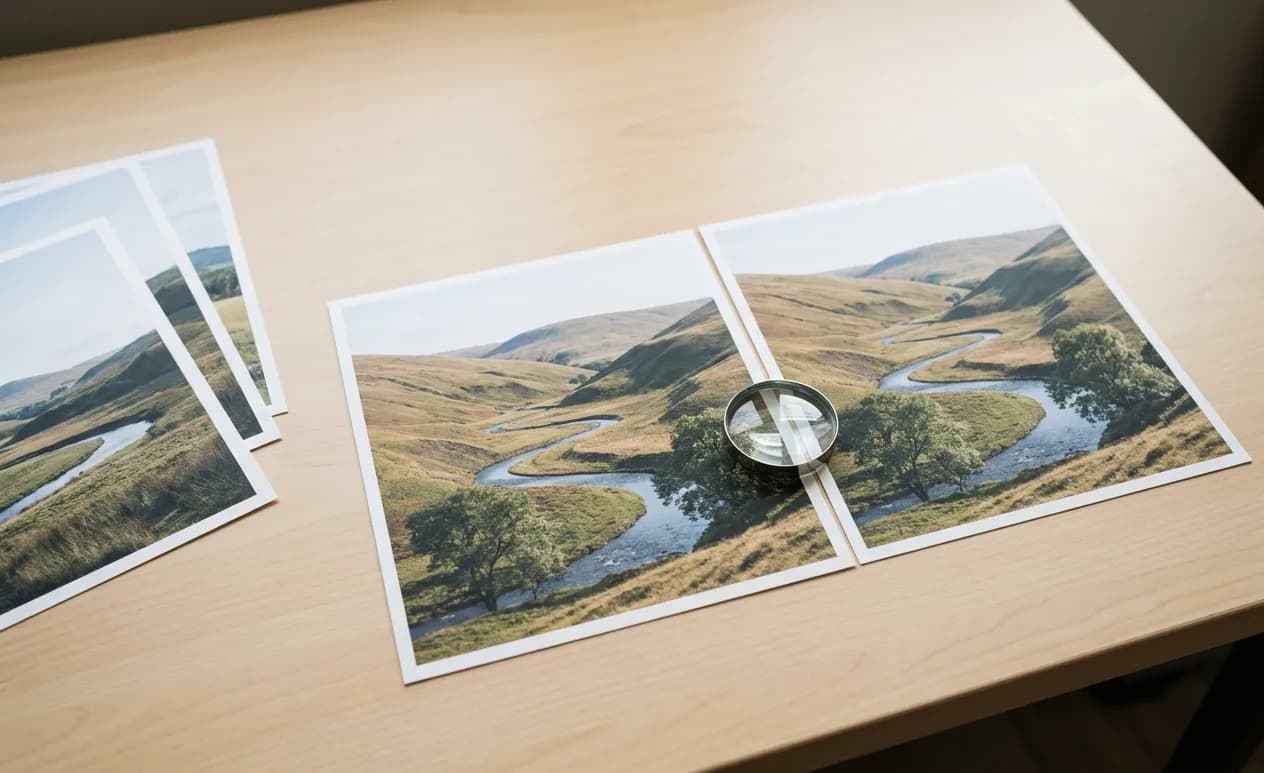
The Duplicates album targets copies of the same photo. It does not decide which of eight similar shots of a sunset is the keeper. For that, a quick manual pass works best:
- Burst photos on iPhone are grouped as one burst; open it, choose the favorites and discard the rest.
- For ordinary similar shots, view them side by side, mark the best as a favorite, and delete the others.
- Work through one month or one event at a time; trying to clean a whole library in one sitting is how the wrong photos get deleted.
Method 3: Duplicates in Finder folders
If your photos live in ordinary folders rather than the Photos library, there is no built-in duplicates album, but Finder can still help:
- Sort by size and name. In list view, sort a folder by size; exact copies of the same image sit next to each other with identical sizes.
- Look for copy names. Files ending in “copy” or a trailing number such as “(1)” are often duplicates created by dragging or downloading twice.
- Use a Smart Folder. A Smart Folder searching for image files across several locations shows copies scattered between folders in one view.
Always open both files with Quick Look (the space bar) before deleting one, and check that the one you keep is the full-size original.
Method 4: When a dedicated duplicate finder helps
For very large or messy libraries, especially several old libraries and folders combined, a dedicated app can save hours. Well-known Mac options include Gemini from MacPaw, PowerPhotos from Fat Cat Software (which also merges Photos libraries), and the free, open-source dupeGuru. They differ in whether they scan the Photos library, plain folders or both, and in how they compare similar images, so read the developer’s documentation, check current pricing, and test on a small folder before a full run.
Some general photo organizers also include duplicate detection. Our roundup of the best photo organizer apps for Mac notes which ones do.
How to stop duplicates coming back
- Import once. When importing from a camera or phone, let the app skip items already in the library.
- Delete from the card or phone after a verified import, so the same photos are not imported again next time.
- Keep one library. Two Photos libraries on one Mac almost always end up with overlap.
- Do not save photos from messages that are already in your camera roll.
- Treat backups as backups. Never import from a backup drive into your working library “to be safe.”
Frequently asked questions
Why don’t I see a Duplicates album in Photos?
It needs macOS Ventura or later, and it only appears after Photos has scanned the library and found duplicates. On a large library, give it time, ideally with the Mac awake and plugged in.
Does merging duplicates lose information?
Merging keeps the highest-quality copy and combines relevant details into it. The removed copies go to Recently Deleted first, so you can recover one if needed.
Will deleting duplicates on my Mac delete them on my iPhone?
If you use iCloud Photos, yes: the library is shared, so changes apply everywhere. If you do not, the Mac and the phone are separate.