How to Back Up Your Photo Library on a Mac
Time Machine, a second external drive, cloud backup and the iCloud Photos setting that catches people out: a complete, tested backup plan for a Mac photo library.
Updated · 10 min read
Of everything on a Mac, a photo library is the hardest thing to replace. Documents can be rewritten and apps reinstalled, but the only copy of a child’s first steps or the before photos of a disputed job exists exactly once, and drives do fail. Many people assume their photos are safe because they are “in iCloud.” That is not quite the same thing as a backup, and the difference matters.
This guide sets out a complete backup plan for a Mac photo library, using built-in tools where possible, and ends with the step almost everyone skips: checking that the backup actually restores.
iCloud Photos is sync, not backup
iCloud Photos keeps the same library on your iPhone, iPad and Mac. That is wonderful for convenience, and it means your photos survive a lost phone. But because it syncs, a photo deleted on one device is deleted on all of them. Deleted photos sit in Recently Deleted for a limited time, then they are gone everywhere. A backup is different: it is a separate copy that does not change when your library changes, so you can go back to how things were.
Use iCloud Photos for sync if you like it, and keep a real backup as well.
Step 1: Make sure the originals are on the Mac
If Photos is set to Optimize Mac Storage, the Mac may hold only smaller versions of many photos, with the full-size originals in iCloud. A backup of that Mac is a backup of the small versions. To back up everything, open Photos settings, go to the iCloud tab, choose Download Originals to this Mac, and wait for the download to finish. You will need enough free disk space for the whole library.
If photos are still arriving from your iPhone by other routes, settle that first too; our guide on how to transfer photos from iPhone to Mac covers each method and what it leaves behind.
Step 2: Turn on Time Machine
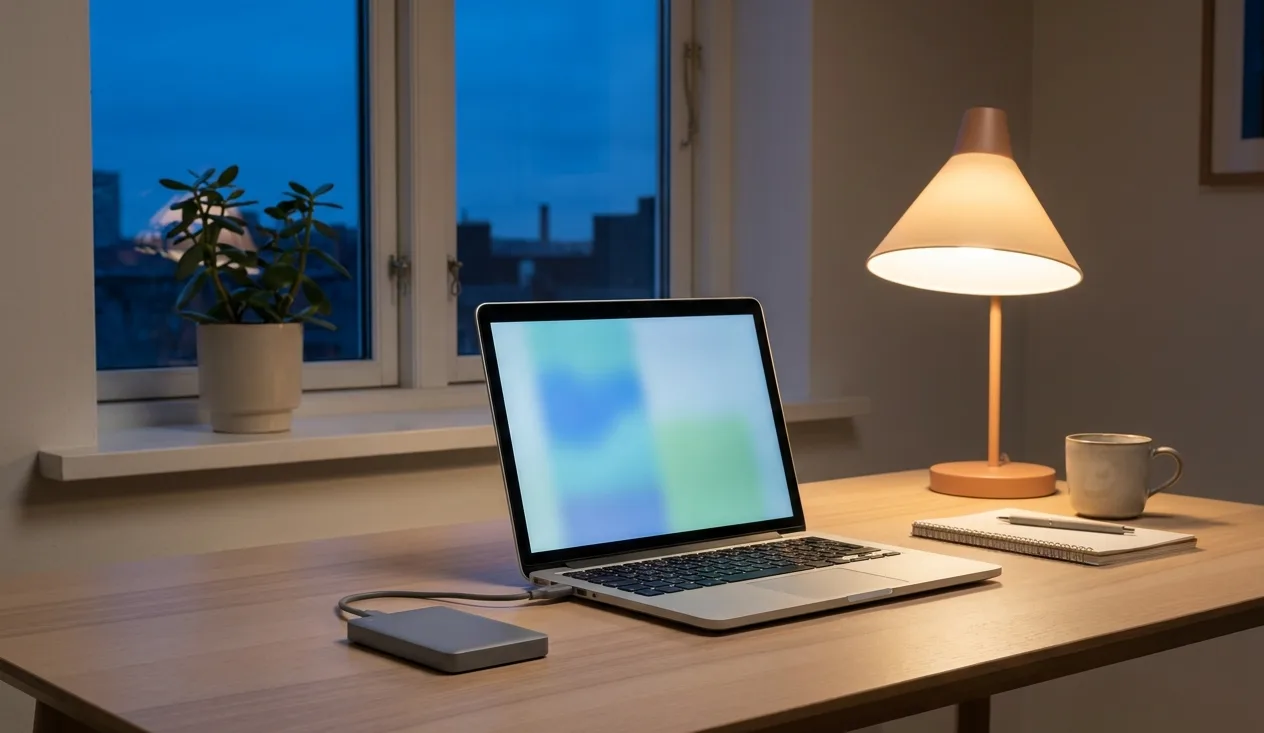
Time Machine is built into macOS and backs up your whole Mac, including the Photos library, to an external drive automatically. Connect a drive at least as large as the data you want to back up (larger is better, since Time Machine keeps older versions), then open System Settings, choose General, then Time Machine, and add the drive as a backup disk.
After the first backup, which can take hours for a big library, Time Machine backs up changes automatically whenever the drive is connected. Leaving it plugged in at your desk is the easiest way to make sure it actually runs.
Step 3: Keep a second copy somewhere else
One backup on a drive next to your Mac protects against a failed internal drive. It does not protect against fire, flood or theft, which take the Mac and the drive together. The widely used 3-2-1 rule covers it: three copies of your data, on two different kinds of storage, with one copy kept off-site.
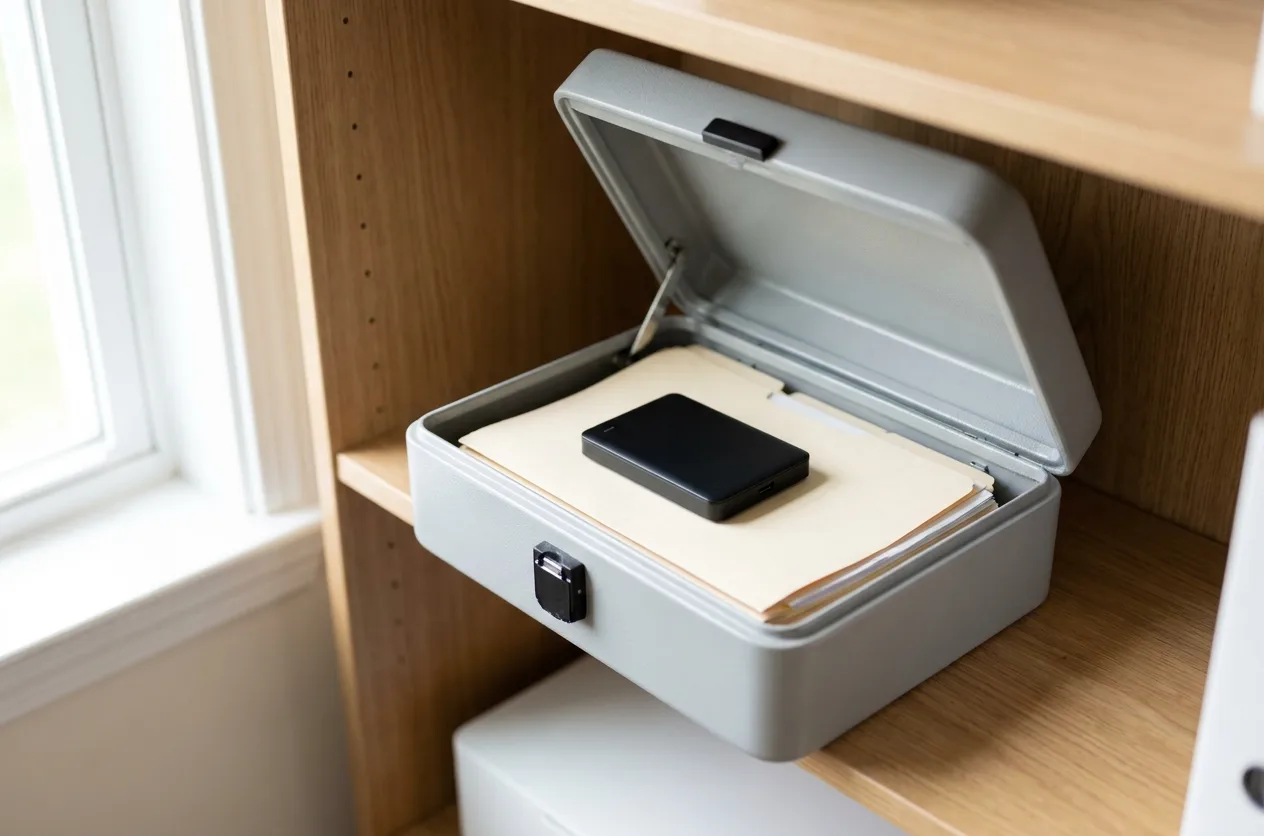
- A second external drive kept elsewhere. Copy the library to it periodically and store it at the office, with a relative, or in a fire-resistant box. Swap it with a second rotated drive if you want both copies to stay recent.
- An online backup service. Several services back up a Mac, including external drives, to the cloud continuously. Check that the one you choose includes your Photos library and how long it keeps deleted files.
Step 4: If you copy the library by hand
A Photos library is a single package file, usually in your Pictures folder. You can copy it to an external drive in Finder, but a few precautions matter:
- Quit Photos first, so nothing changes mid-copy.
- Use a drive formatted as APFS or Mac OS Extended, which Apple recommends for storing a Photos library.
- Do not keep a live library in a cloud-synced folder such as iCloud Drive or Dropbox; syncing services can damage it.
- Copy, never move, until you have confirmed the copy opens.
Step 5: Clean up before the big backup, not after
A library full of duplicates backs up duplicates, and takes longer and more space doing it. If you are planning a cleanup, the right order is: back up once as-is, clean up, then let your regular backups carry the tidier library forward. Our guide on finding and removing duplicate photos on a Mac walks through doing that safely.
Step 6: Test that it restores
A backup you have never restored from is a hope, not a plan. Once a few months, try it:
- Open Time Machine and browse to a date a few weeks ago.
- Restore a single photo, or a copy of the library, to a different location such as the desktop.
- Open it and check the photo, or hold Option while opening Photos to choose the restored library and confirm it opens.
- Switch back to your main library afterwards.
Frequently asked questions
Is iCloud Photos enough on its own?
It protects you from a lost or broken device, but because it syncs deletions and edits, it is not a backup. Keep at least one separate copy.
How big a drive do I need?
Check the size of your Photos library in Finder (select it and choose Get Info), then buy a drive with plenty of room beyond that. For Time Machine, a drive two or more times the size of the data you are backing up gives room for older versions.
How often should I back up?
Time Machine handles it automatically while the drive is connected. Update your off-site copy at least monthly, and after any big import or event you would hate to lose.